机器人模拟简介
通常,团队可能想在没有可用的实际机器人的情况下测试其代码。 WPILib使团队能够使用简单的gradle命令来模拟各种机器人功能。
指令使用桌面模拟器需要启用桌面支持。这可以通过在创建机器人项目时选中“启用桌面支持复选框”或通过运行Visual Studio Code命令面板中的“ WPILib:更改启用桌面支持设置”来完成。


也可以通过手动编辑位于机器人项目根目录下的build.gradle文件来启用桌面支持。只需将``includeDesktopSupport = false’’更改为``includeDesktopSupport = true’’
重要
重要的是要注意启用桌面/模拟支持会产生意想不到的后果。并非所有供应商都支持此选项,并且使用它们的库的代码甚至可能在尝试运行模拟时崩溃!
If at any point in time you want to disable Desktop Support, simply re-run the “WPILib: Change Desktop Support Enabled Setting” from the command palette or change includeDesktopSupport to false in build.gradle.
备注
C++ robot simulation requires that a native compiler to be installed. For Windows, this would be Visual Studio 2022 version 17.9 or later (not VS Code), macOS requires Xcode 14 or later, and Linux (Ubuntu) requires the build-essential package.
Ensure the Desktop Development with C++ option is checked in the Visual Studio installer for simulation support.

Running Robot Simulation
Basic robot simulation can be run using VS Code. This can be done by using VS Code’s command palette WPILib: Simulate Robot Code as shown below.


The Sim GUI option will be selected by default. This will launch the Simulation GUI. You can also launch simulation without a GUI by unchecking Sim GUI in which case your console output in Visual Studio Code should look like the below.
********** Robot program starting **********
Default disabledInit() method... Override me!
Default disabledPeriodic() method... Override me!
Default robotPeriodic() method... Override me!
If you would would like to prevent the pop up and only use build.gradle to configure your simulation settings you can add the following in your vscode settings.json file.
"wpilib.skipSelectSimulateExtension": true
警告
You may see a run button next to the WPILib button. This button does not set up simulation appropriately and should not be used. Instead, the menu item shown above WPILib: Simulate Robot Code should be used.

备注
Simulation can also be run outside of VS Code using ./gradlew simulateJava for Java or ./gradlew simulateNative for C++.
备注
Some vendors support attaching hardware to your PC and using the hardware in desktop simulation (e.g. CANivore). See vendor documentation for more information about the command WPILib: Hardware Sim Robot Code.
GUI simulation support is installed by default when you install RobotPy.
There is a robotpy subcommand that you can execute to run your code in simulation:
py -3 -m robotpy sim
python3 -m robotpy sim
python3 -m robotpy sim
运行机器人面板
Shuffleboard, SmartDashboard, Glass, and AdvantageScope can be used with WPILib simulation when they are configured to connect to the local computer (i.e. localhost).
Shuffleboard
Shuffleboard is automatically configured to look for a NetworkTables instance from the robotRIO but not from other sources. To connect to a simulation, open Shuffleboard preferences from the File menu and select NetworkTables under Plugins on the left navigation bar. In the Server field, type in the IP address or hostname of the NetworkTables host. For a standard simulation configuration, use localhost.

智能仪表板
SmartDashboard is automatically configured to look for a NetworkTables instance from the roboRIO, but not from other sources. To connect to a simulation, open SmartDashboard preferences under the File menu and in the Team Number field, enter the IP address or hostname of the NetworkTables host. For a standard simulation configuration, use localhost.

Glass
Glass is automatically configured to look for a NetworkTables instance from the roboRIO, but not from other sources. To connect to a simulation, open NetworkTables Settings under the NetworkTables menu and in the Team/IP field, enter the IP address or hostname of the NetworkTables host. For a standard simulation configuration, use localhost.

AdvantageScope
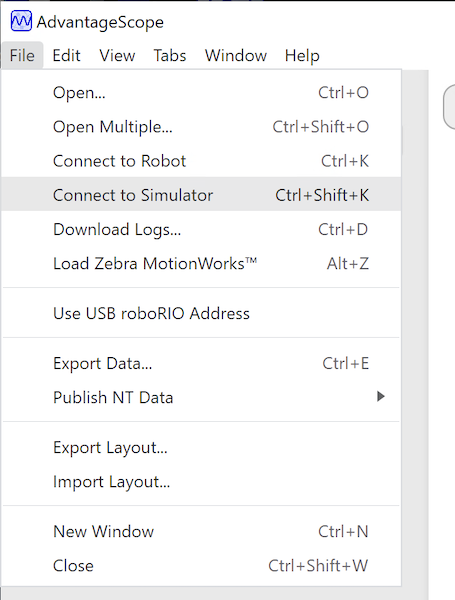
No configuration is required to connect to a NetworkTables instance running on the local computer. To connect to a simulation, click Connect to Simulator under the File menu or press Ctrl+Shift+K.